Accounts & imports
Import a cTrader CSV statement
Import your closed trades without connecting live sync.
Prepare the export
- Open cTrader in English and select your trading account.
- Open History in the bottom panel.
- Set Period to All history, or choose your start and end dates. Clear any search filters.
- Right-click the column headings and tick every column, one by one. The default selection leaves out opening times, swaps, commissions and conversion fees.
Export after your positions are fully closed so all partial closes are included. Use Statement, not Order history.
Then save the CSV using the steps for Web, Mac or Windows.
cTrader Web
- Click Statement → View.
- In the new tab, click Save.
- Find the CSV in your browser's downloads.
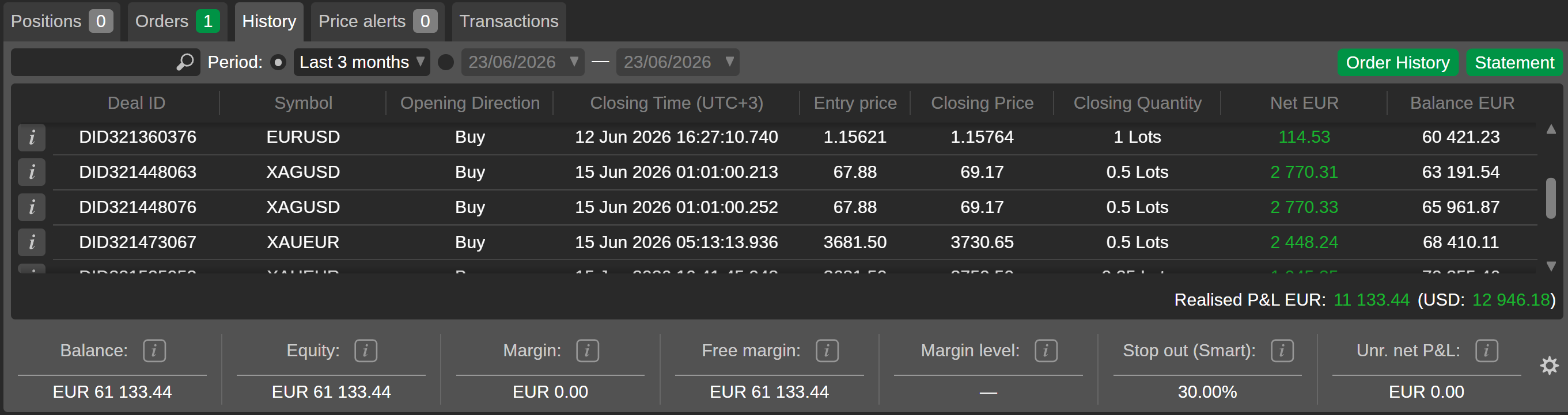
Image: cTrader Web guide.
cTrader Mac
- Click the arrow next to Statement and enable CSV. HTML is optional.
- Click the main Statement button.
- Finder opens the statements folder with the CSV selected. Use that file in Forexizer.
If a statement tab opens instead, click Save to get the CSV.
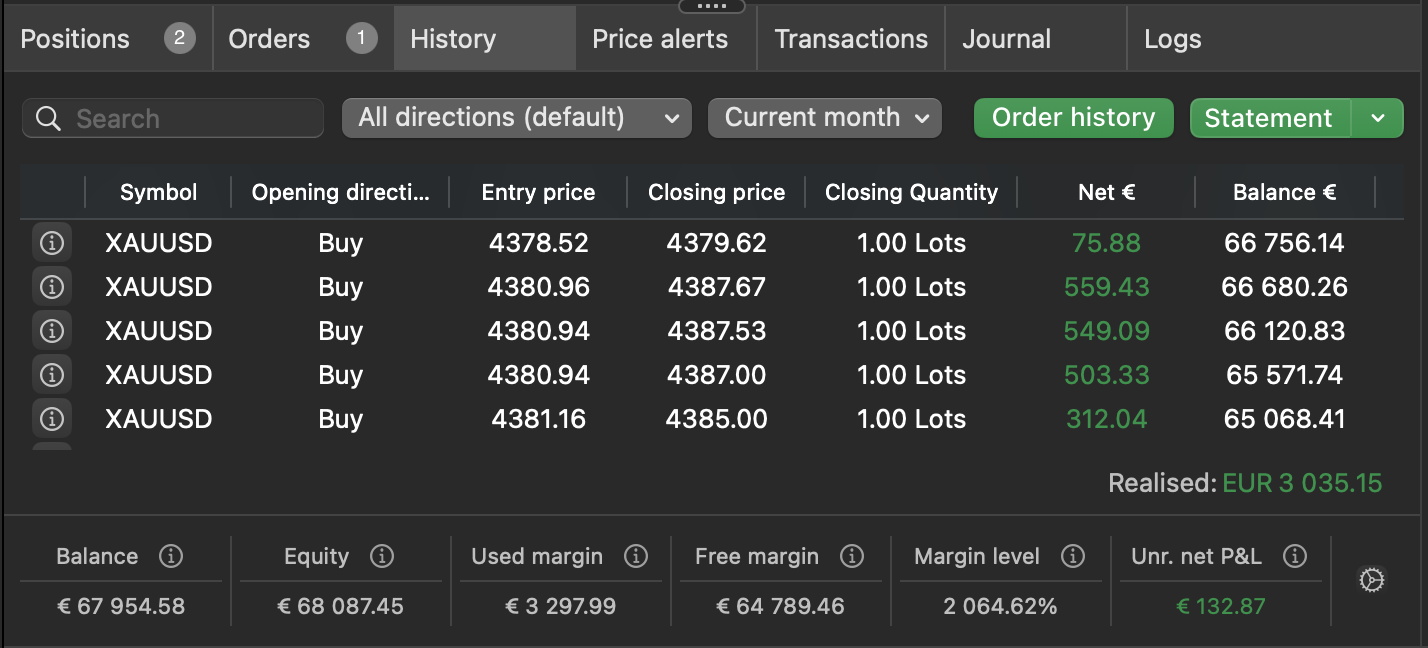
Image: cTrader Mac guide.
cTrader Windows
- Open the Statement menu and choose CSV if offered, then click Statement.
- If an HTML statement opens, use its Save control to get the CSV.
- If a folder opens, select the generated CSV.
If you only get an Excel file, export through cTrader Web. Renaming .xlsx or .html to .csv will not work.
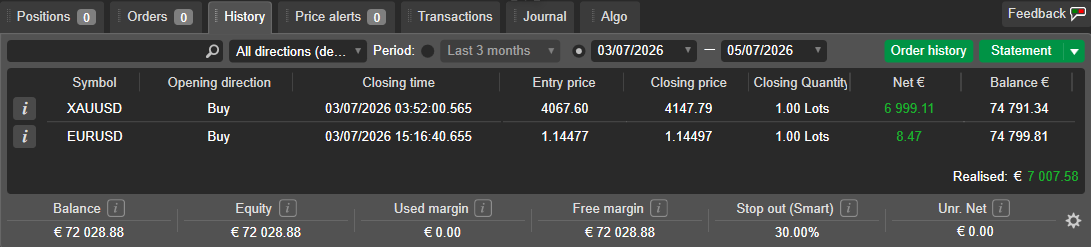
Image: cTrader Windows guide.
Check the columns
Before exporting, make sure the costs are ticked too. Mac may call them Swaps and Broker commission. Reset to default does not enable all columns.
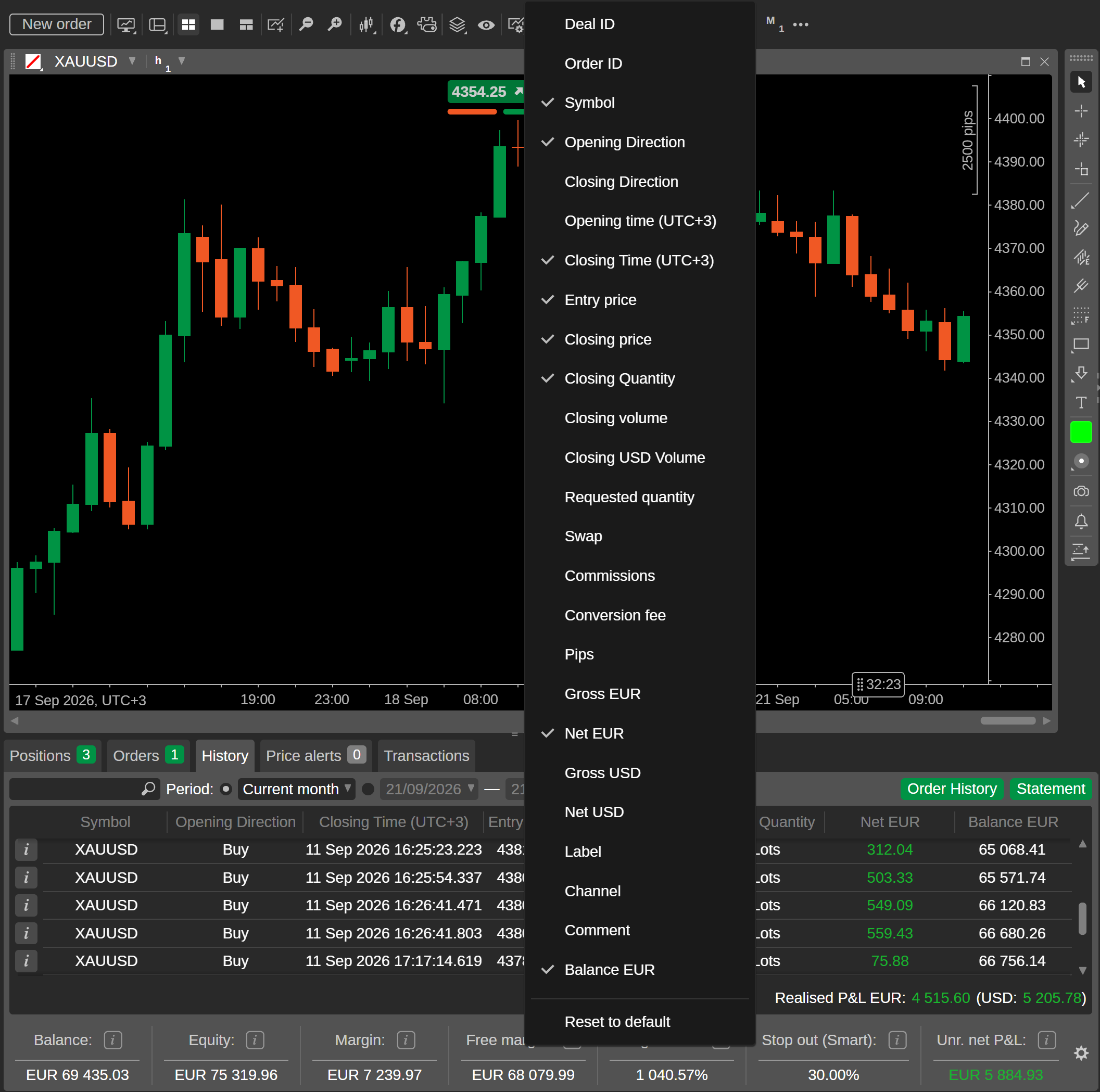
Image: cTrader Web column menu.
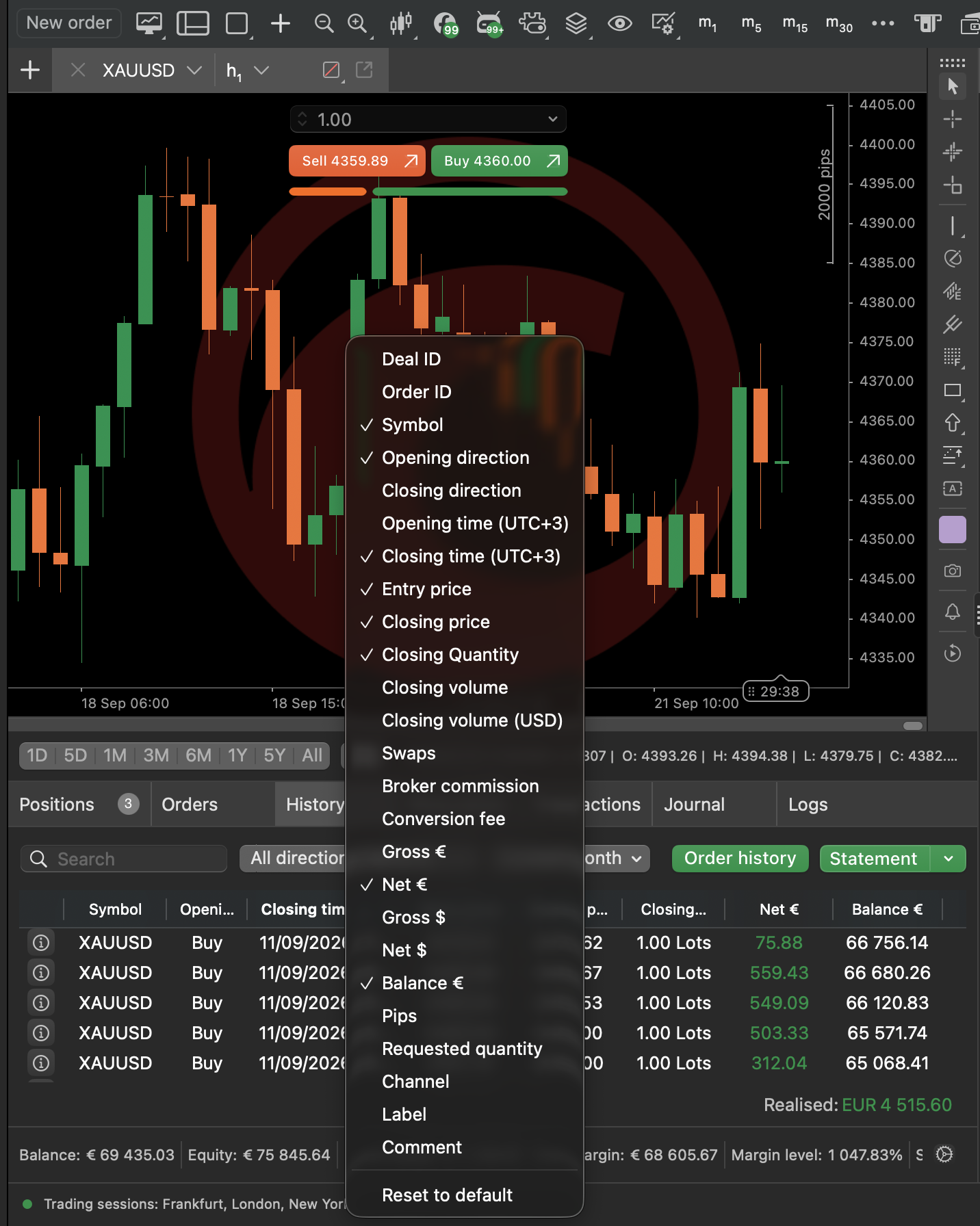
Image: cTrader Mac column menu.
Import into Forexizer
- Open Accounts and choose Import CSV on your cTrader account, or add a new cTrader account first.
- Choose the CSV. Make sure the account currency matches your statement.
- Check the trade count, dates, costs and net P&L in the preview, then confirm.
If asked for a starting balance, enter the balance before the imported trades. Check any deposits and withdrawals too.
For later imports, use the same Forexizer account so duplicates are detected.
Prefer automatic updates? Connect cTrader live sync.